
Deploy and scale an Orleans app on Azure
In this quickstart, you deploy and scale an Orleans URL shortener app on Azure Container Apps. The app allows users to submit a full URL to the app, which returns a shortened version they can share with others to direct them to the original site. Orleans and Azure provide the scalability features necessary to host high traffic apps like URL shorteners. Orleans is also compatible with any other hosting service that supports .NET.
At the end of this quickstart, you have a scalable app running in Azure to provide URL shortener functionality. Along the way you learn to:
- Pull an Azure Developer CLI template
- Deploy an Orleans app to Azure
- Scale the app to multiple instances
Prerequisites
Section titled “Prerequisites”- An Azure account with an active subscription. Create an account for free.
- Azure Developer CLI
- .NET 10 SDK
- Docker
Get and deploy the sample application
Section titled “Get and deploy the sample application”The sample application is available as an Azure Developer CLI template. Through this quickstart: you pull the template application, deploy the template and sample code to Azure, change the template to implement your preferred persistence grain, deploy the necessary resources, and then deploy the final application.
-
Open a terminal in an empty directory.
-
Authenticate to the Azure Developer CLI using
azd auth login. Follow the steps specified by the tool to authenticate to the CLI using your preferred Azure credentials.Terminal window azd auth login -
Get the sample application using the AZD template
orleans-url-shortenerand theazd initcommand.Terminal window azd init --template orleans-url-shortener -
During initialization, configure a unique environment name.
-
Deploy the Azure Cosmos DB for NoSQL account using
azd up. The Bicep templates also deploy a sample web application.Terminal window azd up -
During the provisioning process, select your subscription and desired location. Wait for the provisioning and deployment process to complete. The process can take approximately five minutes.
-
Once the provisioning of your Azure resources is done, a URL to the running web application is included in the output.
Deploying services (azd deploy)(✓) Done: Deploying service web- Endpoint: <https://[container-app-sub-domain].azurecontainerapps.io>SUCCESS: Your application was provisioned and deployed to Azure in 5 minutes 0 seconds. -
Use the URL in the console to navigate to your web application in the browser.

-
In the browser address bar, test the
shortenendpoint by adding a URL path such as/shorten?url=https://www.microsoft.com. The page should reload and provide a new URL with a shortened path at the end. Copy the new URL to your clipboard.{"original": "https://www.microsoft.com","shortened": "http://<container-app-name>.<deployment-name>.<region>.azurecontainerapps.io:<port>/go/<generated-id>"} -
Paste the shortened URL into the address bar and press enter. The page should reload and redirect you to the URL you specified.
Deploy extra services
Section titled “Deploy extra services”The original deployment only deployed the minimal services necessary to host the URL shortener app. To use an Azure data service for grain persistence, you must first configure the template to deploy your preferred service.
Applies to: Azure Storage
-
Using the terminal, run
azd env setto configure theDEPLOY_AZURE_TABLE_STORAGEenvironment variable to enable deployment of Azure Table Storage.Terminal window azd env set DEPLOY_AZURE_TABLE_STORAGE true
Applies to: Azure Cosmos DB for NoSQL
-
Using the terminal, run
azd env setto configure theDEPLOY_AZURE_COSMOS_DB_NOSQLenvironment variable to enable deployment of Azure Cosmos DB for NoSQL.Terminal window azd env set DEPLOY_AZURE_COSMOS_DB_NOSQL true
-
Run
azd provisionto redeploy your application architecture with the new configuration. Wait for the provisioning process to complete. The process can take approximately two minutes.Terminal window azd provision
Install NuGet packages
Section titled “Install NuGet packages”Before adding shared providers, align the template with the snippets:
-
Change the working directory to ./src/web/.
Terminal window cd ./src/web -
In the project file, change
TargetFrameworktonet10.0. -
In ./src/web/Dockerfile, update both .NET container images: use
mcr.microsoft.com/dotnet/sdk:10.0for the build stage andmcr.microsoft.com/dotnet/aspnet:10.0for the runtime stage. -
Upgrade the Orleans host package:
Terminal window dotnet package add Microsoft.Orleans.Server --version 10.2.2
Next, install the corresponding Microsoft.Orleans.Clustering.* and Microsoft.Orleans.Persistence.* NuGet packages. These services use role-based access control for passwordless authentication, so you must also import the Azure.Identity NuGet package.
Applies to: Azure Storage
-
Import the
Azure.Identitypackage from NuGet:Terminal window dotnet package add Azure.Identity -
Import the
Microsoft.Orleans.Clustering.AzureStorageandMicrosoft.Orleans.Persistence.AzureStoragepackages.Feature NuGet package Clustering Microsoft.Orleans.Clustering.AzureStoragePersistence Microsoft.Orleans.Persistence.AzureStorageTerminal window dotnet package add Microsoft.Orleans.Clustering.AzureStorage --version 10.2.2dotnet package add Microsoft.Orleans.Persistence.AzureStorage --version 10.2.2
Applies to: Azure Cosmos DB for NoSQL
-
Import the
Azure.Identitypackage from NuGet:Terminal window dotnet package add Azure.Identity -
Import the
Microsoft.Orleans.Clustering.CosmosandMicrosoft.Orleans.Persistence.Cosmospackages.Feature NuGet package Clustering Microsoft.Orleans.Clustering.CosmosPersistence Microsoft.Orleans.Persistence.CosmosTerminal window dotnet package add Microsoft.Orleans.Clustering.Cosmos --version 10.2.2dotnet package add Microsoft.Orleans.Persistence.Cosmos --version 10.2.2
Configure and redeploy the sample app
Section titled “Configure and redeploy the sample app”The sample app initially creates a localhost cluster and persists grain state in memory. When hosted in Azure, Orleans can use a shared data service for cluster membership and durable grain state.
-
Find and remove the existing
builderconfiguration code in the src/web/Program.cs file.builder.Host.UseOrleans(static siloBuilder =>{siloBuilder.UseLocalhostClustering();siloBuilder.AddMemoryGrainStorage("urls");});
Applies to: Azure Storage
-
Add the required
usingdirectives:using Azure.Data.Tables;using Azure.Identity;using Orleans.Configuration; -
Replace the
builderconfiguration with the example here, which implements these key concepts:- A conditional environment check is added to ensure the app runs properly in both local development and Azure hosted scenarios.
- AzureTableClusteringExtensions.UseAzureStorageClustering configures the Orleans cluster to use Azure Table Storage and authenticates using DefaultAzureCredential.
- The configuration assigns ClusterId and ServiceId.
- ClusterId identifies a cluster so its clients and silos can communicate. Use a different value for deployments that must remain isolated.
- ServiceId identifies the application and should remain consistent across deployments.
if (builder.Environment.IsDevelopment()){builder.Host.UseOrleans(static siloBuilder =>{siloBuilder.UseLocalhostClustering().AddMemoryGrainStorage("urls");});}else{builder.Host.UseOrleans(siloBuilder =>{var endpoint = new Uri(builder.Configuration["AZURE_TABLE_STORAGE_ENDPOINT"]!);var credential = new DefaultAzureCredential();siloBuilder.UseAzureStorageClustering(options =>{options.TableServiceClient = new TableServiceClient(endpoint, credential);}).AddAzureTableGrainStorage(name: "urls", options =>{options.TableServiceClient = new TableServiceClient(endpoint, credential);}).Configure<ClusterOptions>(options =>{options.ClusterId = "url-shortener";options.ServiceId = "urls";});});}
Applies to: Azure Cosmos DB for NoSQL
-
Add the required
usingdirectives:using Azure.Identity;using Orleans.Configuration; -
Replace the
builderconfiguration with the example here, which implements these key concepts:- A conditional environment check is added to ensure the app runs properly in both local development and Azure hosted scenarios.
- HostingExtensions.UseCosmosClustering configures the Orleans cluster to use Azure Cosmos DB for NoSQL and authenticates using DefaultAzureCredential.
- The configuration assigns ClusterId and ServiceId.
- ClusterId identifies a cluster so its clients and silos can communicate. Use a different value for deployments that must remain isolated.
- ServiceId identifies the application and should remain consistent across deployments.
if (builder.Environment.IsDevelopment()){builder.Host.UseOrleans(static siloBuilder =>{siloBuilder.UseLocalhostClustering().AddMemoryGrainStorage("urls");});}else{builder.Host.UseOrleans(siloBuilder =>{var endpoint = builder.Configuration["AZURE_COSMOS_DB_NOSQL_ENDPOINT"]!;var credential = new DefaultAzureCredential();siloBuilder.UseCosmosClustering(options =>{options.ConfigureCosmosClient(endpoint, credential);}).AddCosmosGrainStorage(name: "urls", options =>{options.ConfigureCosmosClient(endpoint, credential);}).Configure<ClusterOptions>(options =>{options.ClusterId = "url-shortener";options.ServiceId = "urls";});});}
-
Run
azd deployto redeploy your application code as a Docker container. Wait for the deployment process to complete. The process can take approximately one minute.Terminal window azd deploy
Verify the app’s behavior
Section titled “Verify the app’s behavior”Validate that your updated code works by using the deployed application again and checking to see where it stores data.
-
In the browser address bar, test the
shortenendpoint again by adding a URL path such as/shorten?url=https://learn.microsoft.com/dotnet/orleans. The page should reload and provide a new URL with a shortened path at the end. Copy the new URL to your clipboard.{"original": "https://learn.microsoft.com/dotnet/orleans","shortened": "http://<container-app-name>.<deployment-name>.<region>.azurecontainerapps.io:<port>/go/<generated-id>"} -
Paste the shortened URL into the address bar and press enter. The page should reload and redirect you to the URL you specified.
Optionally, you can verify that the cluster and state data is stored as expected in the storage account you created.
-
In the Azure portal, navigate to the resource group that was deployed in this quickstart.
Applies to: Azure Storage
-
Navigate to the overview page of the Azure Storage account.
-
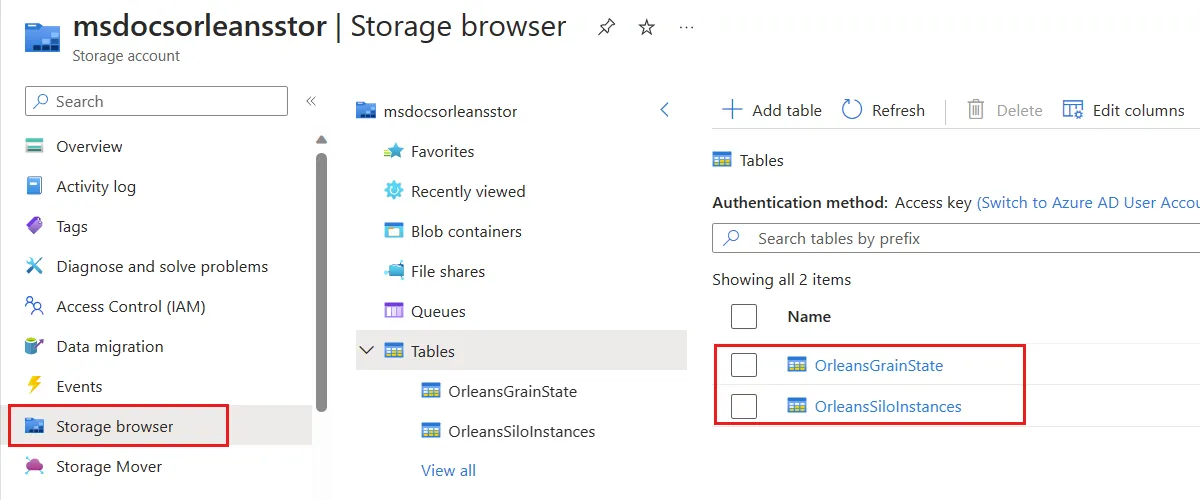
Within the navigation, select Storage browser.
-
Expand the Tables navigation item to discover two tables created by Orleans:
- OrleansGrainState: This table stores the persistent state grain data used by the application to handle the URL redirects.
- OrleansSiloInstances: This table tracks essential silo data for the Orleans cluster.
-
Select the OrleansGrainState table. The table holds a row entry for every URL redirect persisted by the app during your testing.
Applies to: Azure Cosmos DB for NoSQL
-
Navigate to the overview page of the Azure Cosmos DB for NoSQL account.
-
Within the navigation, select Data Explorer.
-
Observe the following containers you created earlier in this guide:
-
OrleansStorage: This table stores the persistent state grain data used by the application to handle the URL redirects.
-
OrleansCluster: This table tracks essential silo data for the Orleans cluster.
-
Scale the app
Section titled “Scale the app”Don’t increase the replica count of the single silo Container App created by this quickstart. Orleans requires every silo to advertise a unique, directly reachable endpoint pair, while Azure Container Apps doesn’t provide stable per-replica addresses for one app.
To scale this topology, deploy additional one-replica silo apps with distinct advertised endpoints. See Deploy Orleans to Azure Container Apps for the supported topology, networking requirements, and upgrade procedure.
Related content
Section titled “Related content”Applies to: Azure Storage
Applies to: Azure Cosmos DB for NoSQL